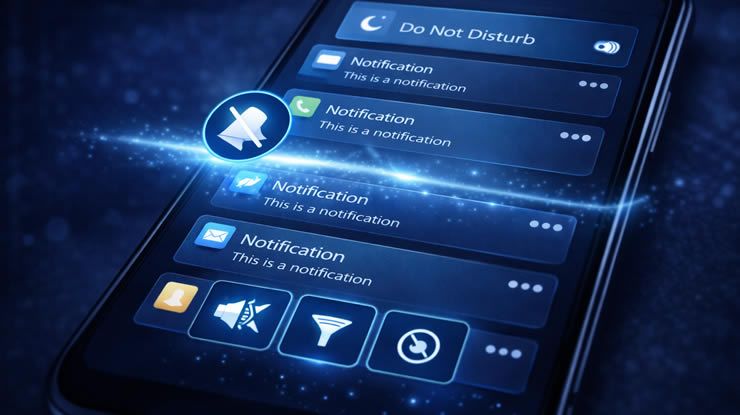

Notifications are useful, but too many alerts can quickly become overwhelming. Messages, promotions, updates and random apps constantly interrupt your day.
What many Android users don’t know is that the system includes powerful tools to control notifications in detail.
With a few simple settings, you can keep only the alerts that really matter.
1. Use Notification Categories
Android allows you to control different types of notifications from the same app.
Steps:
-
Open Settings
-
Tap Apps
-
Select an app
-
Tap Notifications
You can disable specific categories like:
-
Promotions
-
Alerts
-
Reminders
2. Silence Notifications Without Disabling Them
You don’t need to turn notifications off completely.
How:
-
Long press a notification
-
Select Silent
This keeps notifications without sound or vibration.
3. Use Do Not Disturb Mode
Perfect for work or sleep time.
Setup:
-
Settings → Sound
-
Tap Do Not Disturb
-
Schedule automatic activation
You can allow calls from specific contacts.
4. Block Pop-Up Notifications
Pop-ups can be very distracting.
Steps:
-
Open app settings
-
Tap Notifications
-
Disable Pop on screen
5. Turn Off Lock Screen Notifications
For more privacy and fewer distractions:
-
Settings → Notifications
-
Lock Screen
-
Select Hide Sensitive Content
6. Disable Notification Badges
Those numbers on app icons can create anxiety.
Turn off:
-
Settings → Notifications
-
Disable Notification badges
7. Control Background Activity
Apps running in background send more notifications.
Fix:
-
Settings → Apps
-
Select app
-
Battery → Restrict
8. Use Priority Conversations
Important contacts can bypass silent mode.
Setup:
-
Open Messages
-
Select contact
-
Mark as Priority
9. Group Notifications
Android automatically groups alerts from the same app.
This reduces clutter in your notification panel.
10. Disable Unnecessary Apps Completely
Some apps don’t need notifications at all.
Simply turn them off entirely.
Extra Tip: Clean Your Notifications Weekly
Take a few minutes to review which apps are sending alerts.
This keeps your phone organized and stress-free.
Conclusion
Too many notifications can make your phone feel chaotic.
By controlling them properly, you can reduce distractions and use your phone more efficiently.