
Smartphones are powerful, but most people only use a small part of what their devices can actually do. Hidden shortcuts and quick settings can save minutes every single day — and over time, that adds up.
The good news? You don’t need to be a tech expert to use these tricks. Below are simple, practical features available on most Android phones and iPhones that make daily tasks faster and easier.
1. Use Quick Settings for Instant Actions
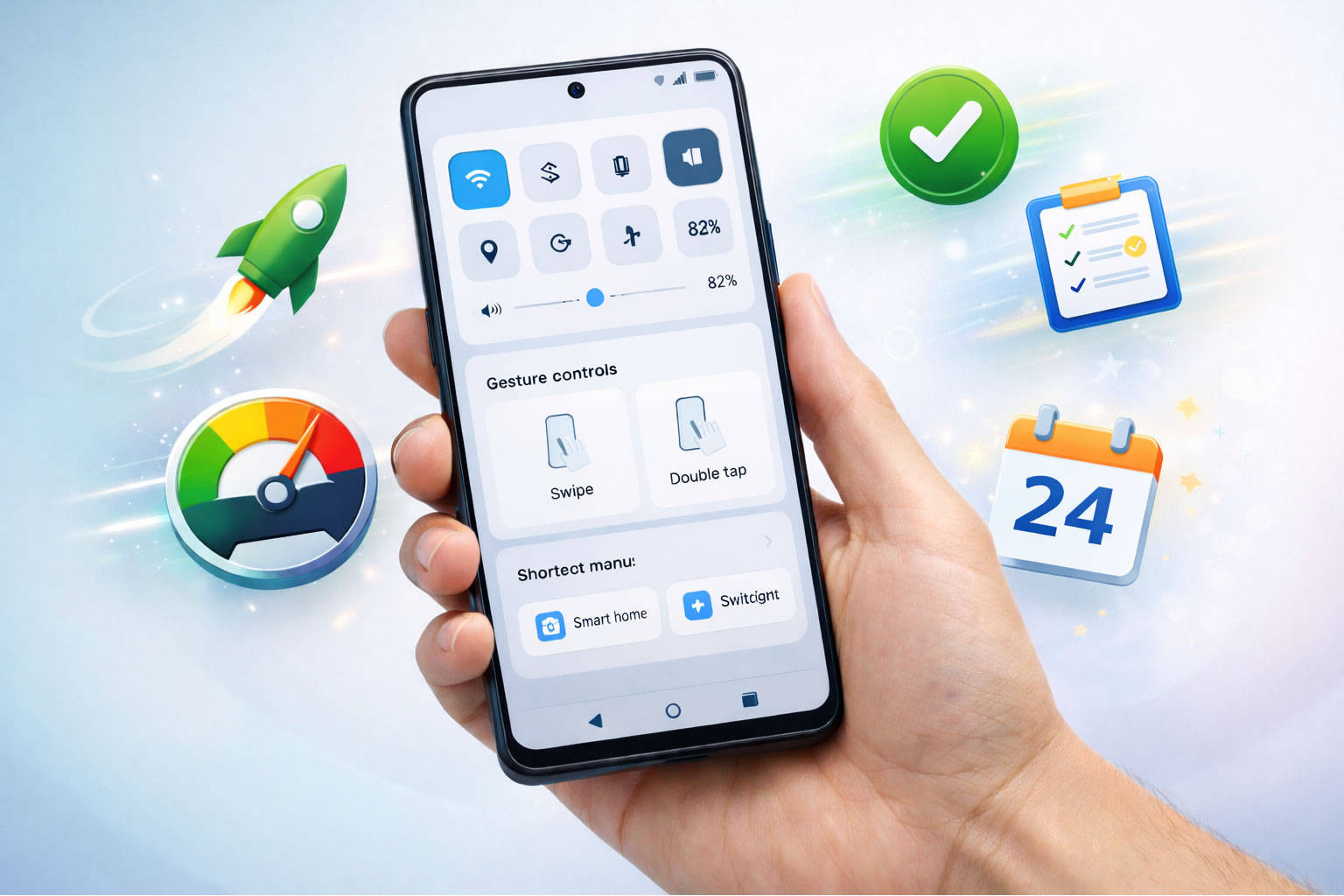
Instead of opening multiple menus, swipe down from the top of your screen to access quick settings.
Steps:
-
Swipe down from the top of your phone.
-
Tap icons like Wi-Fi, Bluetooth, Flashlight, or Airplane Mode.
-
Hold an icon to jump directly to advanced settings.
This saves time compared to navigating through full menus.
2. Double Tap to Wake the Screen
Many phones allow you to wake the screen without pressing the power button.
Steps:
-
Go to Settings.
-
Search for “Double Tap” or “Tap to Wake.”
-
Activate the feature.
-
Double tap the screen to turn it on instantly.
Great for quick checks without wearing out your buttons.
3. Use Voice Commands for Fast Tasks
Voice assistants can open apps, send messages, or set reminders quickly.
Steps:
-
Say “Hey Google” or “Hey Siri.”
-
Give a simple command like:
-
“Set a timer for 10 minutes.”
-
“Open WhatsApp.”
-
“Call Mom.”
-
It’s one of the fastest ways to interact with your phone.
4. Create App Shortcuts on the Home Screen
Long-pressing apps often reveals quick actions.
Steps:
-
Press and hold an app icon.
-
Look for options like “New Message” or “Search.”
-
Drag that shortcut to your home screen.
Now you can jump directly into specific actions.
5. Take Screenshots Faster
Instead of using buttons, many phones offer gesture screenshots.
Steps:
-
Open Settings.
-
Search for “Gestures” or “Motions.”
-
Enable screenshot gestures (like swipe with three fingers).
-
Swipe to capture instantly.
Perfect for saving important info quickly.
6. Use Focus Mode or Do Not Disturb
Reduce distractions during work or study.
Steps:
-
Go to Settings → Focus Mode / Do Not Disturb.
-
Choose which apps or contacts can notify you.
-
Schedule automatic activation times.
This helps you stay productive without constant interruptions.
7. Scan Documents with Your Camera
Your phone can act as a scanner without extra apps.
Steps:
-
Open Notes app (iPhone) or Google Drive (Android).
-
Tap Scan Document.
-
Position the camera over the paper.
-
Save or share instantly as PDF.
Useful for school, work, or quick paperwork.
8. Use One-Handed Mode
Large phones can be hard to use with one hand.
Steps:
-
Go to Settings → Accessibility or Display.
-
Enable One-Handed Mode.
-
Swipe down near the bottom of the screen.
The interface shrinks so you can reach everything easily.
9. Quickly Switch Between Recent Apps
Jumping between apps is faster than reopening them.
Steps:
-
Swipe up and hold (gesture navigation) or tap Recent Apps button.
-
Swipe left or right to switch apps.
-
On some phones, swipe across the bottom bar for instant switching.
This saves time when multitasking.
10. Use Built-in Password Autofill
Stop typing passwords repeatedly.
Steps:
-
Go to Settings → Passwords or Autofill.
-
Enable Google Password Manager or iCloud Keychain.
-
Save login info securely.
-
Log into apps with one tap.
It’s faster and also improves security.
Extra Tip 💡
Customize your home screen with only your most used apps and widgets. A clean layout reduces searching time and makes your phone feel faster and more organized.
Quick Conclusion
Small tricks can make a big difference in how you use your smartphone every day. By learning simple shortcuts like quick settings, gestures, and voice commands, you can save time and reduce frustration — even if you’re just starting to explore your device.
Try a few of these features today and see how much smoother your daily phone routine becomes.